Activity › Forums › Salesforce® Discussions › Lock/Unlock Record of an object
-
Lock/Unlock Record of an object
Posted by Utsav on March 22, 2016 at 2:47 PMWhat are the best possible ways to provide Lock/Unlock feature of an object record on some specific condition in Salesforce?
shariq replied 7 years, 7 months ago 4 Members · 3 Replies -
3 Replies
-
Hello Utsav,
This can be achieved using Salesforce Approval Lock Result Class which is being introduced in Salesforce Winter 16 as an new class.
To enable this feature, from Setup, enter Process Automation Settings in the Quick Find box, then click Process Automation Settings. Then, select Enable record locking and unlocking in Apex.
For example: You want to lock a account record based on a certain condition which locks the record.
account acc = new account();
acc.name =’Prakhar’;
insert acc;
list<account> acclist = new list<account>();
acclist.add(acc);
if(acc.phone == ”){
Approval.LockResult[] lrList = Approval.lock(acclist, false);
}For further information regarding Approval Lock result Class just go through the following links:
https://releasenotes.docs.salesforce.com/en-us/winter16/release-notes/rn_apex_approval_locks_unlocks.htmHope that helps you.
Thanks.-
This reply was modified 10 years, 1 month ago by
Prakhar.
-
This reply was modified 10 years, 1 month ago by
- [adinserter block='9']
-
Hi,
// Query the accounts to lock
Account[] accts = [SELECT Id from Account WHERE Name LIKE ‘Acme%’];
// Lock the accounts
Approval.LockResult[] lrList = Approval.lock(accts, false);// Iterate through each returned result
for(Approval.LockResult lr : lrList) {
if (lr.isSuccess()) {
// Operation was successful, so get the ID of the record that was processed
System.debug(‘Successfully locked account with ID: ‘ + lr.getId());
}
else {
// Operation failed, so get all errors
for(Database.Error err : lr.getErrors()) {
System.debug(‘The following error has occurred.’);
System.debug(err.getStatusCode() + ‘: ‘ + err.getMessage());
System.debug(‘Account fields that affected this error: ‘ + err.getFields());
}
}
}Hope this helps.
-
Hi,
Through Record Types & Workflow/Process Builder
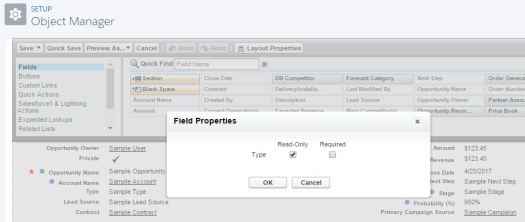
In this approach, you need to create 2 page layouts. I’m calling them – “EditablePageLayout” and “ReadOnlyPageLayout”. The editable page layout is the existing normal page layout you already have. The read only page layout will have all the fields in read-only mode i.e., for every field in this page layout, you have to click the settings icon and check the ‘Read Only’ check box as shown below.
Once you have the page layouts ready, create 2 record types and assign the page layouts to the record types.
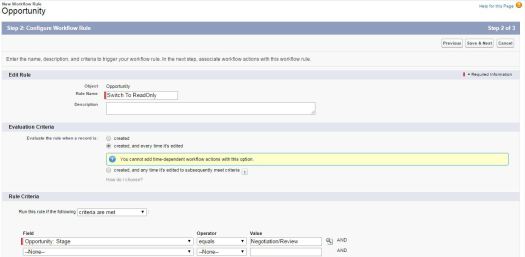
Now create a workflow rule – when opportunity stage is in “Negotiation/Review”, we need to change the page layout from EditablePageLayout to ReadOnlyLayout. To change the pagelayout, we need to change the record type for that record using workflow. Here’s how the workflow looks like.
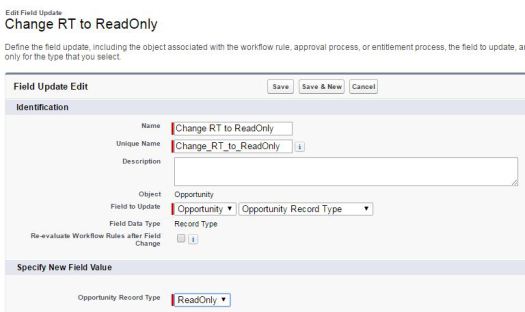
And then create a workflow field update to set the Record type.
That’s it, save the workflow field update and activate the workflow. When the opportunity is moved to ‘Negotiation/Review’ stage, the page layout changes to ReadOnlyPagelayout and the users cannot edit it anymore.
Note: With the 1st approach, every time user creates a new Opportunity, the user is asked to choose the record type! To skip this, you just have to remove the ReadOnly Record Type from the user’s Profile (and set the main record type as default). Even without record type permission, the user will still be able to view the Readonly record. Also, System Administrator would be still able to edit the record.
Tip : Instead of a workflow, you can of course use Process Builder to implement the logic for switching of record types from Editable to Read Only.
Hope this helps.
Log In to reply.