
-
How to delete records from Salesforce reports using demand tool?
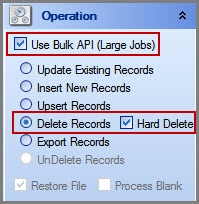
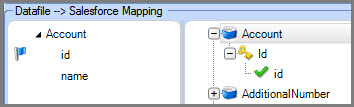
I’m new to Salesforce Lightning development, hence please give some inputs on step by step process for deleting certain records from Salesforce reports. Also, tell how this can be done using Demand Tool?


Log In to reply.

Popular Salesforce Blogs

Explain the Top 10 Reasons to Choose Salesforce for your Business
What is Salesforce? Salesforce is a cloud-based software company that offers tools to businesses to help them find more prospects, close more deals, and provide…


These 5 Steps Will Help You Improve the Health of Your Salesforce Data
Companies struggling to maintain the quality health of their data should not expect the deluge of data to slow down anytime soon. In fact, the…


Breaking Down the Basics of Salesforce MuleSoft
We all know the feeling. You've got a to-do list, but somehow it never seems to get any shorter. Your IT team is no different.…

Popular Salesforce Videos

The Rise of Salesforce
Salesforce is a cloud computing service as a software (SaaS) company that specializes in customer relationship management (CRM). Salesforce's services allow businesses to use cloud…


Salesforce Automation Tools
What all automation tools available in Salesforce? Learn more about automation tools - a) Process Builder b) Lighting Flow c) Approval process d) Workflow rules…


Salesforce Developer Training Videos For Beginners | Salesforce Training
This Salesforce Training Video is the video session of a live virtual class conducted by Simplilearn. So if you just go through the video you…
