
-
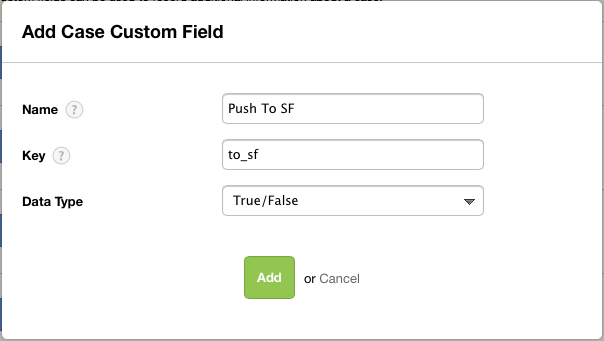
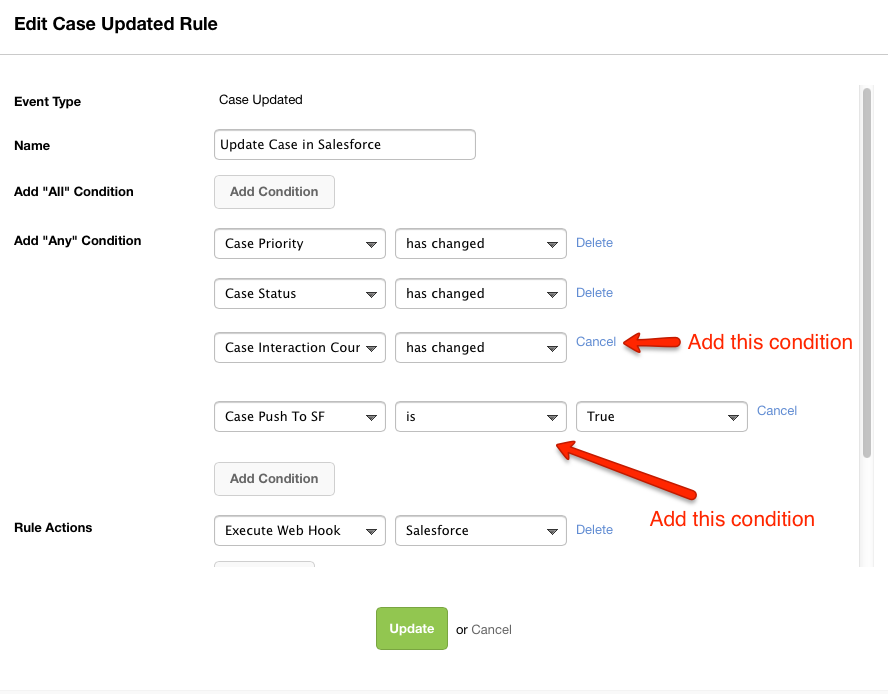
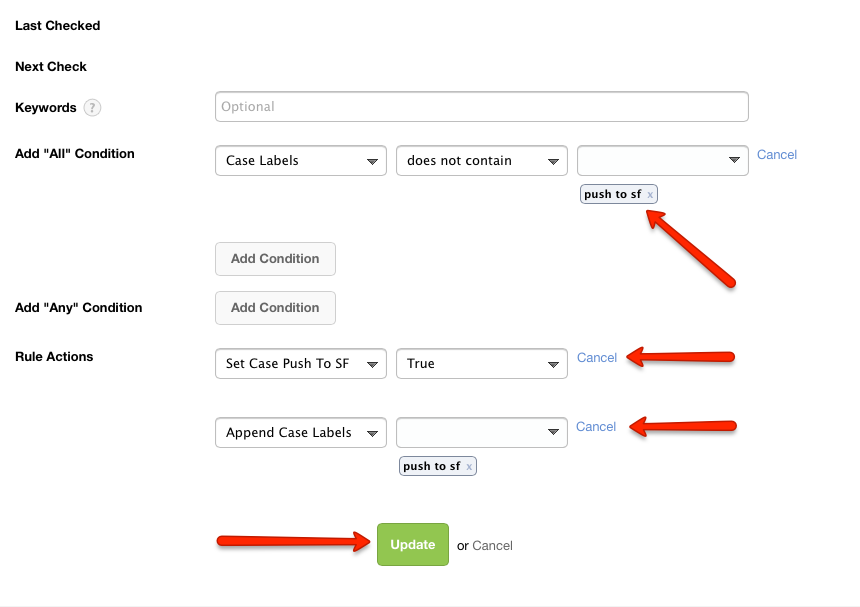
How can we get all Desk.com case in Salesforce?
How can we get all Desk.com case in Salesforce?



Log In to reply.

Popular Salesforce Blogs

3 Top Challenges with Data Migration to Salesforce you Want to Avoid
Moving data to a new system, especially Salesforce, can be a daunting task. In this blog post, we'll delve into three issues that commonly arise…


Salesforce Health Cloud Implementation: Complete Guide for Healthcare Providers
Healthcare organizations face mounting pressure to improve patient engagement while managing complex data systems. According to a 2024 global survey, nearly 40 percent of healthcare…


Is Salesforce Really Essential for Small Businesses?
Although Fortune 500 companies receive all the media attention, it is small businesses that run the economy. Small businesses account for 99.7 percent of all…

Popular Salesforce Videos

Salesforce - The Ultimate Career Booster | Salesforce Tutorials For Beginners
This Salesforce Training Webinar will help you understand how Salesforce is the ultimate career booster for IT, Sales and Marketing. You will learn the Roadmap…


Why Salesforce India is Primed for Growth
Amarendra Kumar, RVP of Alliances and Channels for India at Salesforce, says the region is poised for tremendous growth and opportunity over the next few…


DreamTX Welcome Day 1 | Dreamforce 2020 | Salesforce
If you missed DreamTX DAY 1, then live this amazing experience here, we have covered it all for you. Let’s come together for the Dreamforce…