Toggle Side Panel

  • Home
  • Articles
    • All Articles
    • Blogs
    • Videos
    • Infographics
  • Consultants
    • Salesforce Product Expertise
      • Top Salesforce ConsultantsTop Salesforce Consultants
      • Marketing Cloud ConsultantsMarketing Cloud Consultants
      • Service Cloud ConsultantsService Cloud Consultants
      • Experience Cloud ConsultantsExperience Cloud Consultants
      • Analytics Cloud ConsultantsAnalytics Cloud Consultants
    • Salesforce Industry Expertise
      • Non-Profit Cloud ConsultantsNon-Profit Cloud Consultants
      • Financial Service Cloud ConsultantsFinancial Service Cloud Consultants
      • Health Cloud ConsultantsHealth Cloud Consultants
      • Commerce Cloud ConsultantsCommerce Cloud Consultants
      • Manufacturing Cloud ConsultantsManufacturing Cloud Consultants
    • Salesforce Experts by Location
      • USATop Salesforce Consultants in USA
      • IndiaTop Salesforce Consultants in India
      • AustraliaTop Salesforce Consultants in Australia
      • United KingdomTop Salesforce Consultants in UK
      • CanadaTop Salesforce Consultants in Canada
  • Webinars
  • Contact Us
  • Discussions
More options
    Sign in Sign up
    • Home
    • Articles
      • All Articles
      • Blogs
      • Videos
      • Infographics
    • Consultants
      • Salesforce Product Expertise
        • Top Salesforce ConsultantsTop Salesforce Consultants
        • Marketing Cloud ConsultantsMarketing Cloud Consultants
        • Service Cloud ConsultantsService Cloud Consultants
        • Experience Cloud ConsultantsExperience Cloud Consultants
        • Analytics Cloud ConsultantsAnalytics Cloud Consultants
      • Salesforce Industry Expertise
        • Non-Profit Cloud ConsultantsNon-Profit Cloud Consultants
        • Financial Service Cloud ConsultantsFinancial Service Cloud Consultants
        • Health Cloud ConsultantsHealth Cloud Consultants
        • Commerce Cloud ConsultantsCommerce Cloud Consultants
        • Manufacturing Cloud ConsultantsManufacturing Cloud Consultants
      • Salesforce Experts by Location
        • USATop Salesforce Consultants in USA
        • IndiaTop Salesforce Consultants in India
        • AustraliaTop Salesforce Consultants in Australia
        • United KingdomTop Salesforce Consultants in UK
        • CanadaTop Salesforce Consultants in Canada
    • Webinars
    • Contact Us
    • Discussions
    Close search
    How to show multiple accounts of Salesforce on Leaflet Map?

    How to show multiple accounts of Salesforce on Leaflet Map?

    Parv Shekhar Singh May 31, 2018
    3,887  Views

    Hi All, Here’s the step by step solution for the above question:

    • For achieving the above scenario first we need to create two custom fields on Account Object i.e. Latitude and Longitude.
    • We can also customize the size of the circle for Bubble that will be displayed in Leaflet by creating one more field on the account. (e.g. Circle Size)
    • Here’s the snippet of controller code which we will use for showing account on Leaflet map and open a “Dialogue Box” on click of a button on a particular account.
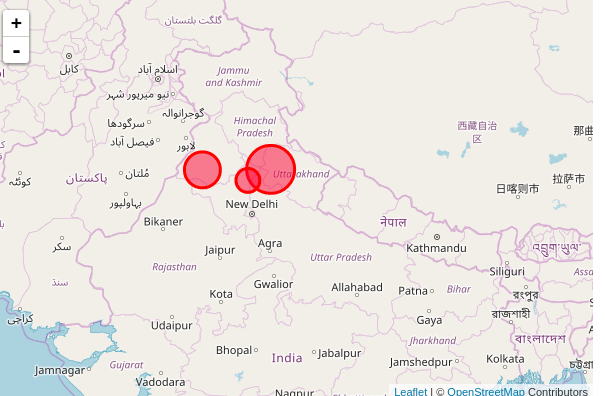
    Image1

    public class AccDetailOnLeafletMulipleBubble {
        public List<Account> listofAccount{get;set;}
        public boolean displayPopup {get; set;}
        public Event newEvent {get; set;}
        public Id newId {get; set;}
        public string newIdAcc {get;set;}
        public AccDetailOnLeafletMulipleBubble(ApexPages.StandardController controller){
            newEvent = new event();
            newId = '0017F00000DvioF';
            listofAccount = [Select id,Name,BillingCity,Circle_Size__c,Latitude__c,Longitude__c FROM Account where Phone = '9898989898' LIMIT 10];
        }
        public void closePopup() {
            displayPopup = false;
        }
        public void showPopup() {
            displayPopup = true;
        }
        public void saveEventToAccount(){
            newEvent.whatId = newIdAcc;
            newEvent.DurationInMinutes = 6;
            newEvent.ActivityDateTime = System.today();
            insert newEvent;
        }
    }
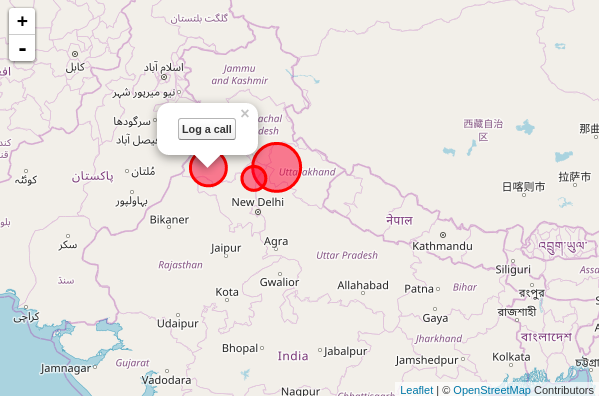
    

    image22

    We can create a dialogue box by the use following snippet of code:

    <style type=”text/css”>
        .custPopup {
            background-color: white;
            border-width: 2px;
            border-style: solid;
            z-index: 9999;
            left: 50%;
            padding:10px;
            position: absolute;
            /* These are the 3 css properties you will need to change so the popup displays in the center of the screen. First set the width. Then set margin-left to negative half of what the width is. You can add the height property for a fixed size pop up if you want.*/
            width: 500px;
            margin-left: -250px;
            top:100px;
        }
        .popupBackground {
            background-color:black;
            opacity: 0.20;
            filter: alpha(opacity = 20);
            position: absolute;
            width: 100%;
            height: 100%;
            top: 0;
            left: 0;
            z-index: 9998; 
        }
    </style>

    Here’s the complete code of the page:

    <apex:page id="pageid" standardController="Account" extensions="AccDetailOnLeafletMulipleBubble">
        <apex:form id="formid" >
            <apex:actionFunction name="actionFunc" action="{!testAccId}" reRender="none">
                <apex:param name="firstParam" value="" assignTo="{!newIdAcc}" />
            </apex:actionFunction>
            <apex:commandButton id="buttonId" value="Log a call" action="{!showPopup}" rerender="tstpopup"/>
            <apex:outputPanel id="tstpopup">
                <apex:outputPanel styleClass="popupBackground" layout="block" rendered="{!displayPopUp}"/>
                <apex:outputPanel styleClass="custPopup" layout="block" rendered="{!displayPopUp}">
                    <apex:pageBlock title="Create New Event">
                        <apex:pageBlockSection >
                            <apex:inputField value="{!newEvent.Ownerid}" /><br/>
                            <apex:inputField value="{!newEvent.Subject}"/><br/>
                            <apex:inputField value="{!newEvent.Type}"/><br/>
                            <apex:inputField value="{!newEvent.StartDateTime}"/><br/>
                            <apex:inputField value="{!newEvent.EndDateTime}"/><br/>
                        </apex:pageBlockSection>
                        <apex:actionRegion >
                            <apex:commandButton value="Save" immediate="true" action="{!saveEventToAccount}" >
                            </apex:commandButton>
                            <apex:commandButton value="Cancel" action="{!Cancel}">
                            </apex:commandButton> 
                        </apex:actionRegion>
                    </apex:pageBlock>
                </apex:outputPanel>
            </apex:outputPanel>
        </apex:form>
    
        <style type="text/css">
            .custPopup {
                background-color: white;
                border-width: 2px;
                border-style: solid;
                z-index: 9999;
                left: 50%;
                padding:10px;
                position: absolute;
                /* These are the 3 css properties you will need to change so the popup   displays in the center of the screen. First set the width. Then set   margin-left to negative half of what the width is. You can add  the height property for a fixed size pop up if you want.*/
                width: 500px;
                margin-left: -250px;
                top:100px;
            }
            .popupBackground {
                background-color:black;
                opacity: 0.20;
                filter: alpha(opacity = 20);
                position: absolute;
                width: 100%;
                height: 100%;
                top: 0;
                left: 0;
                z-index: 9998;
            }
        </style>
        <apex:stylesheet value="https://cdnjs.cloudflare.com/ajax/libs/leaflet/1.0.3/leaflet.css" />
        <apex:includescript value="https://cdnjs.cloudflare.com/ajax/libs/leaflet/1.0.3/leaflet.js" />
        <apex:includescript value="https://ajax.googleapis.com/ajax/libs/jquery/3.2.1/jquery.min.js" />
        <div id="map" style="width: 600px; height: 400px">
        </div>
        <head>
            <script>
                var cr;
                var j$ = jQuery.noConflict();
                var j$modalDialog;
                var jsondata=[{'x': '','y': '','z': '','a': ''}];
                var arr4 = new Array(jsondata);
                <apex:repeat value="{!listofAccount}" var="accId">
                    arr4.push('{!accId.Latitude__c}','{!accId.Longitude__c}','{!accId.Circle_Size__c}','{!accId.Id}');
                </apex:repeat>
                var size = (arr4.length-1)/4 + 1;
                var map = L.map('map').setView([28.38, 77.12], 10);
                mapLink = '<a href="http://openstreetmap.org">OpenStreetMap</a>';
                L.tileLayer('http://{s}.tile.openstreetmap.org/{z}/{x}/{y}.png', {attribution: '&copy; ' + mapLink + ' Contributors',maxZoom: 18,}).addTo(map);
                for(var i=1; i<size; i++) {
                    cr = L.circle([arr4[(i-1)*4 + 1], arr4[(i-1)*4 + 2]],{color : 'red',fillColor : '#f03', fillOpacity: 0.5,className : arr4[(i-1)*4 + 4], radius : arr4[(i-1)*4 + 3]}).addTo(map).on("click", circleClick1);
                }
                function circleClick1(e){
                    var clickedCircle = e.target;
                    var accid = clickedCircle.options.className;
                    actionFunc(accid);
                    clickedCircle.bindPopup(document.getElementById("pageid:formid:buttonId")).openPopup();
                }
                function circleClick(e, f ,j) {
                    document.getElementById("pageid:formid:paramId").value = e;
                    alert('#### e.target : ' +f);
                }
                function actionExample(){
                    methodOneInJavascript();
                }
            </script>
        </head>
    </apex:page>
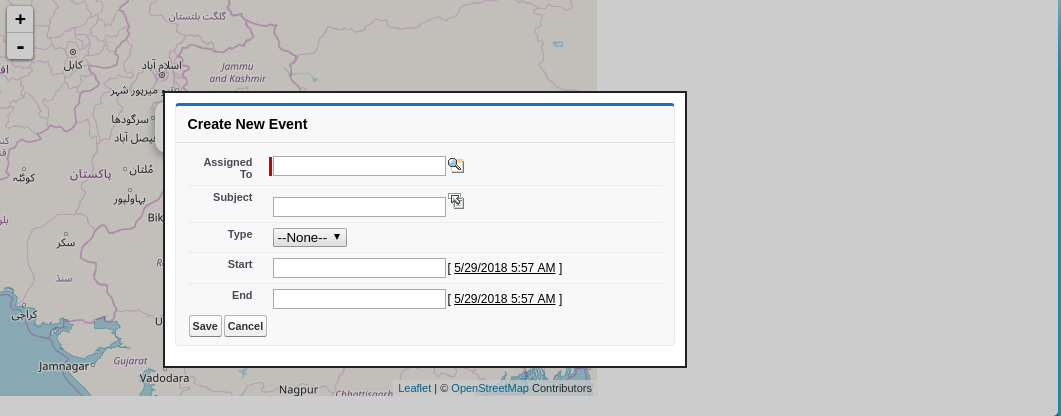
    Image2

    Categories: Salesforce Implementation
    Tagged: Google Maps in Salesforce, Leaflet, Leaflet Map, Maps in Salesforce, Multiple Accounts, Multiple Records, Salesforce Account

    Get listed your company

    Have an innovative Salesforce solution that delivers faster, smarter results?
    Join the Marketplace

    [adinserter block=”16″]

    best salesforce consultants
    best salesforce consultants
    best salesforce consultants
    salesforce consultants

    [adinserter block=”10″]

    salesforce consultants

    [adinserter block=”10″]

    salesforce consultants

    [adinserter block=”10″]

    salesforce consultants

    [adinserter block=”10″]

    salesforce consultants
    salesforce consultants

    [adinserter block=”10″]

    salesforce consultants
    salesforce consultants
    Footer Forcetalks logo

    support@forcetalks.com

    • twitterx

    Quick Links

    Advertise with Us

    Salesforce® Articles

    Dreamforce 2023

    Top Salesforce® Bloggers 2023

    Top Salesforce Consultants

    Get Listed

    Company

    Contact Us

    About Us

    Privacy Policy

    Terms & Conditions

    InsightHub

    Salesforce Blogs

    Salesforce Videos

    Salesforce Groups

    Salesforce Jobs

    © 2026 - Forcetalks ● All Rights Reserved

    Salesforce® is a trademark of Salesforce® Inc. No claim is made to the exclusive right to use “Salesforce”. Any services offered within the Forcetalks website/app are not sponsored or endorsed by Salesforce®.

    Try AuditMyCRM - It is a Salesforce CRM Audit tool which comprehensively scans your Salesforce org and gives you the list of errors or warnings you need to take care of.
    We use cookies to enhance your browsing experience. Please see our privacy policy if you'd like more information on our use of cookies.