
-
How to build Quote view page and editable view page in Salesforce lighting?
I have requirment where i need to develop a quote page with new and edit button and also editable view page for lighting environment . Can anyone help me out.

Log In to reply.

Popular Salesforce Blogs

CRM Software Development Company: Empowering Businesses with Custom CRM Solutions
In today’s highly competitive digital marketplace, customer relationships are more than just interactions—they're the foundation of success. Enter the CRM Software Development Company, the game-changer…


Use Salesforce Communities like Never Before | Salesforce Community Cloud
In today's business landscape, maintaining strong customer relationships is crucial yet challenging. Traditional methods often struggle to keep customers updated while maintaining confidentiality. Salesforce Community…


Salesforce Platform API Versions 21.0 thru 30.0
Summer '22 will see a further set of API versions being retired - up to and including v30.0. SOAP: 21.0, 22.0, 23.0, 24.0, 25.0, 26.0,…

Popular Salesforce Videos

Marc Benioff & Aneel Bhusri On Ensuring a Safe Return to Work | Leading Through Change | Salesforce
In this week’s Leading Through Change, join Aneel Bhusri the Co-Founder and CEO of Workday and Marc Benioff the Chair and CEO of Salesforce as…

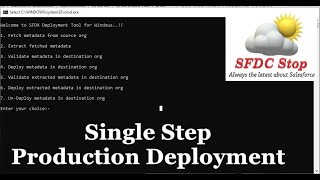
Introduction to SFDX Deploy Tool for Windows | Salesforce Integration Tutorial Series
In this tutorial, we're going to learn about SFDX Deploy Tool for Windows. SFDX Deploy Tool helps you to deploy metadata from one Salesforce org…


Salesforce Mobile Publisher Demo
With Salesforce Mobile Publisher, you can create pixel-perfect mobile applications for employees, customers, and partners. Check out this video and learn all you need to…
