

Steps to Connect Pardot to Salesforce

Steps to Integrate Salesforce and Pardot:
There are some steps to install Pardot in salesforce
1- Click on this link
https://login.salesforce.com/?ec=302&startURL=%2Fpackaging%2FinstallPackage.apexp%3Fp0%3D04t1W000000U7P8(production)
https://test.salesforce.com/?ec=302&startURL=%2Fpackaging%2FinstallPackage.apexp%3Fp0%3D04t1W000000U7P8 (sandbox)
2- After successful installation Pardot in salesforce --->
3- Click on setup ----> Search users in Quick find Search box---> Go to the users--->
4- Select the connector user----->
5- Go to permission Set Assignments --->
6- Click on Edit Assignments ---> Assign the permission of Pardot (connected user)
7- Click on Save button
Map Pardot custom Lead Fields to contact Fields---------------
1- Go to lead fields in salesforce ---> click on Map lead fields ------>
2- Same for Contact Fields
Note - Do not map the Pardot URL lead field and Pardot URL contact field
Show Pardot Data in Salesforce - To show a Pardot Data in salesforce we need to add to custom sections in contact and lead page layout in Salesforce.
1- Add a new section in lead page layout and drag all the Pardot Fields
2- Add a new section in contact page layout and drag All the Pardot Fields
Add to the custom button in lead page layout and contact page layout ----
click on lead page layout ---> click on Edit page layout ---->
Drag the two buttons Named as(enable in classic mode) --
1- Send to Pardot2- Send Pardot Email
Note - To add the buttons to Lightning Experience, drag them to the Salesforce Mobile and Lightning Experience Actions section.
Create the Add to Pardot List Button -
a- click on setup --> search on buttons ---> go to the Campaign object--->b- click on New Button or Link - Name of label "Add to Pardot List"d- Display type select the Detail Page Button- select Display in the existing window with sidebar f- Select the URL and paste the URL -
URL = " https://pi.pardot.com/list/pullCrmCampaign/fid/{!Campaign.Id}/campaignName/ {!URLENCODE(Campaign.Name)}/leadCount/{!Campaign.NumberOfLeads} /contactCount/{!Campaign.NumberOfContacts}?sessionid={!$Api.Session_ID}&serverurl={!$Api.Partner_Server_URL_90}"
g- save the button and add this button to Campaign page layout
In Pardot ----
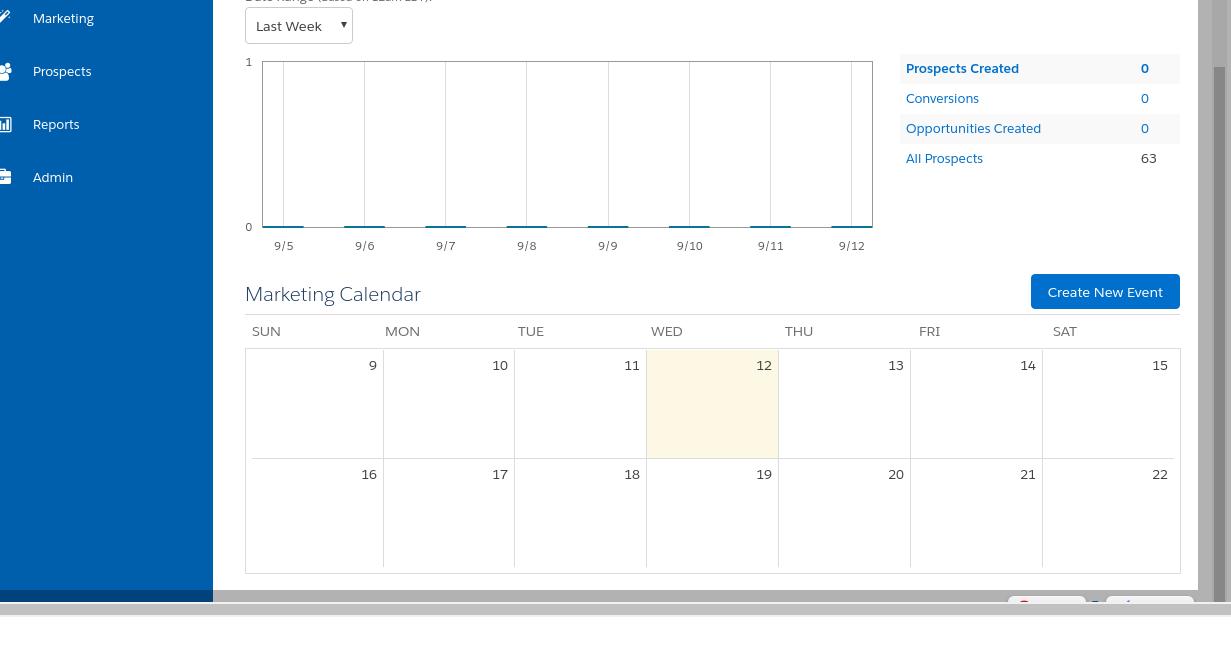
1- Login in pardot ---> click on Admin ----->
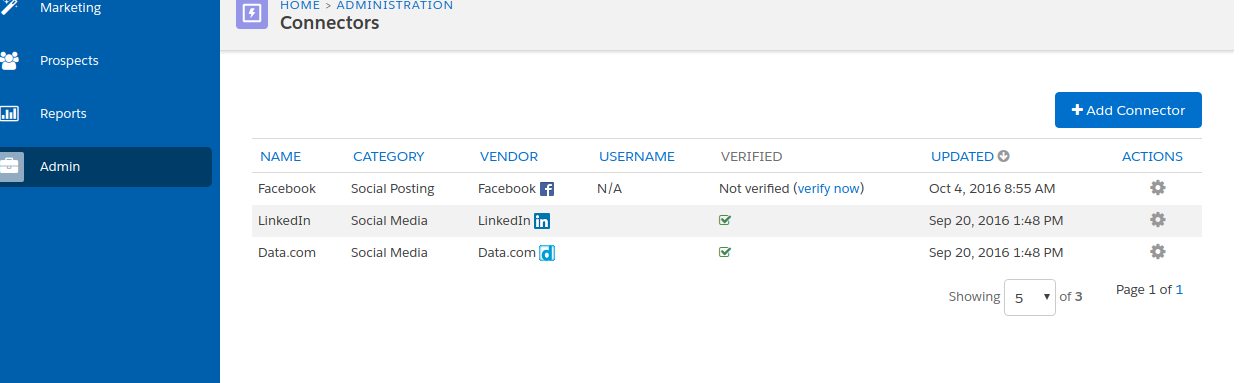
2- click on connectors -- click on Add connector ----> choose salesforce --->
3- enter the salesforce user Name and password --->
4- verify this connector.
4- click on the save button.


