Toggle Side Panel
Forcetalks
  • Home
  • Articles
    • All Articles
    • Blogs
    • Videos
    • Infographics
  • Consultants
    • Salesforce Product Expertise
      • Top Salesforce ConsultantsTop Salesforce Consultants
    • Salesforce Industry Expertise
    • Salesforce Experts by Location
  • Webinars
  • Contact Us
More options
    Sign in Sign up
    • Home
    • Articles
      • All Articles
      • Blogs
      • Videos
      • Infographics
    • Consultants
      • Salesforce Product Expertise
        • Top Salesforce ConsultantsTop Salesforce Consultants
      • Salesforce Industry Expertise
      • Salesforce Experts by Location
    • Webinars
    • Contact Us
    Close search

    How to Customize and Deploy your Salesforce Login Page?

    amanjain
    Aman April 26, 2018
    How to Customize and Deploy your Salesforce Login Page

    After creating your salesforce subdomain. You can create a login page of your own. You can customize your login page so that user need not look at a URL to recognize your site.

    What can you customize in the login page?

    1. You can add brand or company logo on the login page.
    2. You can change the background color.
    3. You can replace the right side of login page with some message or picture.

    Steps to customize login page :

      1. Go to setup and enter my domain in the quick find box and select myDomain.
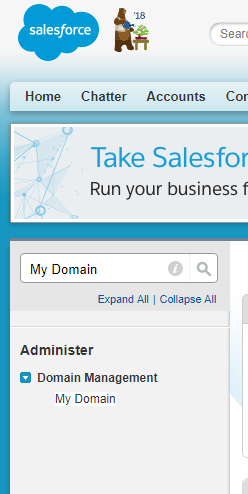
    Home Page Salesforce Developer Edition

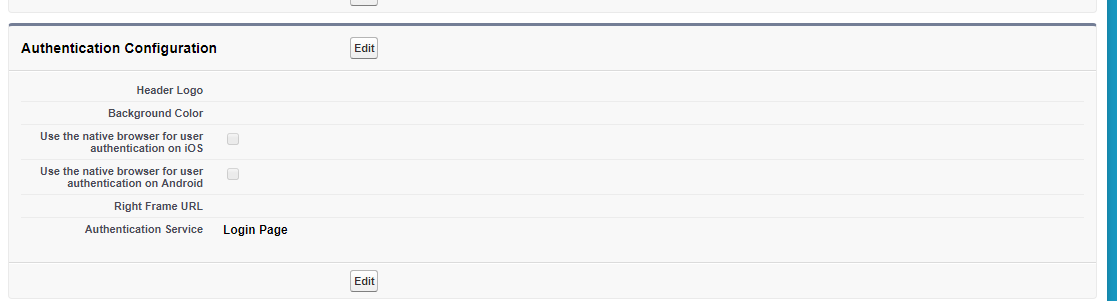
    1. Right to ‘Authentication Configuration’ click edit.My Domain Salesforce Developer Edition2
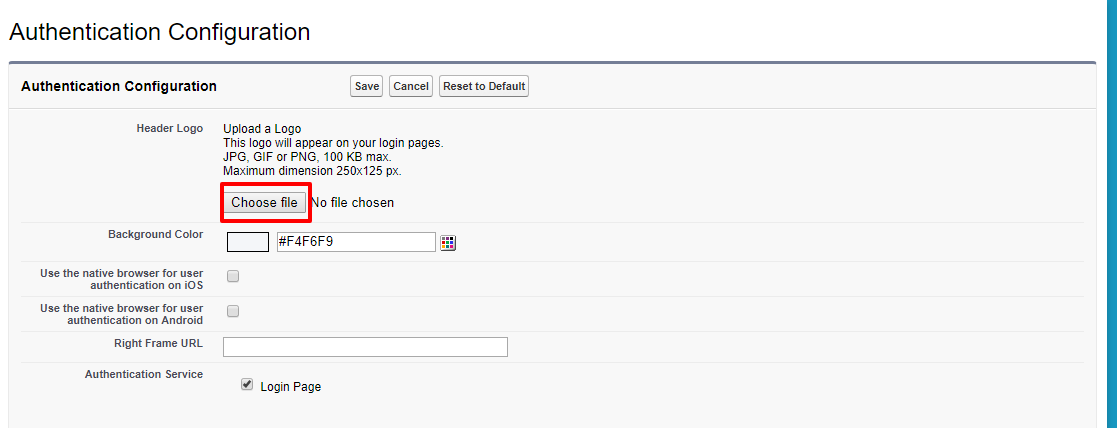
    2. A form will open, From the choose file, upload an image for your brand logo. It will be displayed at the top left of the login page.Salesforce Developer Edition 1
    3. Right to ‘Background Color’ header enter the hexadecimal color code or click the color picker in the text box to change the background color of your login page.
    4. Mark the checkbox for ‘Use the native browser for user authentication on iOS’ to true if you want to redirect users for salesforce1 and mobile SDK applications on IOS devices to their native browser when using single sign-on authentication into your custom domain
    5. Mark the checkbox for ‘Use the native browser for user authentication on Android’ to true if you want to redirect users for salesforce1 and mobile SDK applications on Android devices to their native browser when using single sign-on authentication into your custom domain.
    6. Right to ‘Right Frame URL’ header enter the URL of the file that’s hosted at a URL using SSL encryption and has the https:// prefix in the textbox. This file will be displayed on the right side of the login page.
    7. Click save.
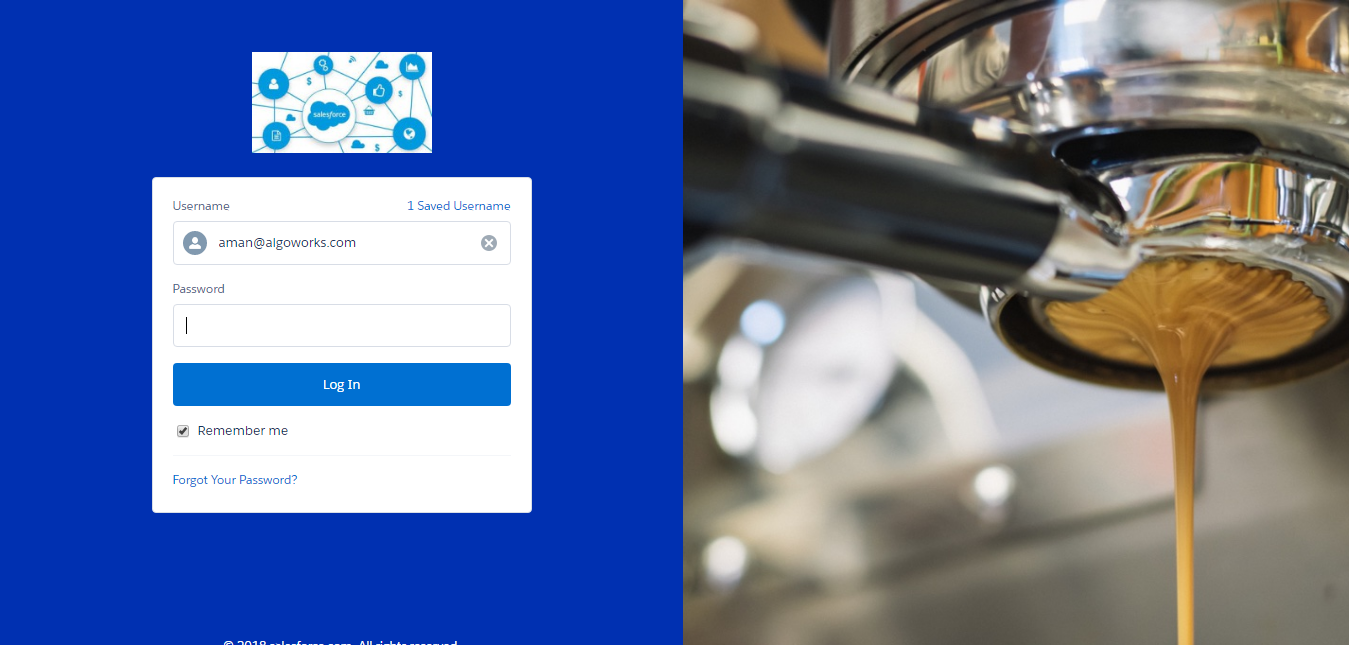
    8. Logout of your org and see the new login page for your Org.your new login page look like below screenshot :

      Login Salesforce

    ——
    Reference:
    https://trailhead.salesforce.com/en/projects/quickstart-lightning-components/steps/quickstart-lightning-components1

    Categories: Salesforce customization
    Tags: Custom Salesforce Page, Deployment In Salesforce, Salesforce Customization, Salesforce Login, Salesforce Login Page, User Authentication

    Get listed your company

    Have an innovative Salesforce solution that delivers faster, smarter results?
    Join the Marketplace

    [adinserter block=”16″]

    best salesforce consultants
    Footer Forcetalks logo

    support@forcetalks.com

    • twitterx

    Quick Links

    Advertise with Us

    Salesforce® Articles

    Dreamforce 2023

    Top Salesforce® Bloggers 2023

    Top Salesforce Consultants

    Get Listed

    Company

    Contact Us

    About Us

    Privacy Policy

    Terms & Conditions

    InsightHub

    Salesforce Blogs

    Salesforce Videos

    Salesforce Groups

    Salesforce Jobs

    Forcetalks

    © 2026 - Forcetalks ● All Rights Reserved

    Salesforce® is a trademark of Salesforce® Inc. No claim is made to the exclusive right to use “Salesforce”. Any services offered within the Forcetalks website/app are not sponsored or endorsed by Salesforce®.