
How to Edit LWC Inside Salesforce (Without VS Code) | BOFC

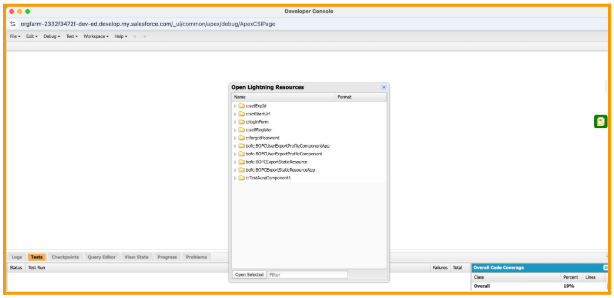
A developer opens Setup looking for the component they need to tweak, finds it listed under Lightning Components, clicks in expecting an editor — and gets nothing. No inline edit, no code box, neither an option in developerConsole to edit. Somewhere around this point, they open a new tab and start searching for how LWC editing actually works.
This moment is common enough that it's basically a rite of passage for anyone moving from Apex or Visualforce into LWC development.
This article covers why Salesforce's own interface won't let you edit LWC, what the standard workaround looks like, and a newer alternative that removes the workaround altogether.
Why You Can't Edit LWC Directly in Salesforce
An LWC isn't a single file the way an Apex class is. It's a bundle — HTML, JavaScript, CSS, and a metadata config file, all expected to stay in sync with each other.
Salesforce's web UI has no built-in editor that can handle a multi-file bundle as one coherent unit, and also Salesforce's Setup UI and Developer Console offer nothing at all.
The Standard Workaround: Local IDE and Salesforce CLI
The supported path is local development:
- Install Salesforce CLI (sf) and authenticate it to your org.
- Retrieve the component with sf project retrieve start, or clone an existing DX project.
- Open the bundle in VS Code, ideally with the Salesforce Extension Pack installed for syntax highlighting and previews.
- Edit and test locally — Jest for unit tests, a scratch org or sandbox for visual checks.
- Deploy back with sf project deploy start.
This works, and it's how Salesforce intends LWC development to happen. But it also asks a developer to pay a setup tax before writing a single line: install something, authenticate something, wait for a sync — every single time, for even a one-line fix.
Challenge 1: The Workflow Depends on Tools Outside Salesforce
VS Code needs a local install, the CLI, the Extension Pack, org authentication, and a metadata pull-and-push cycle every time.
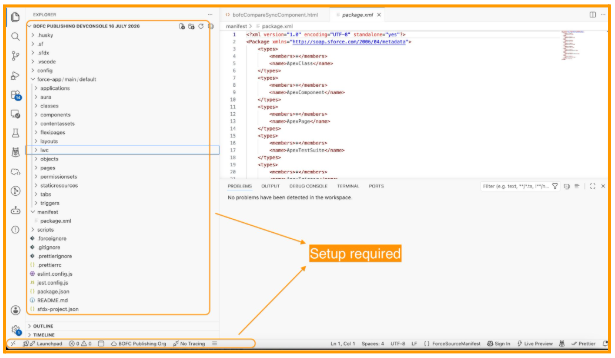
Browser-based editors that skip some of this typically rely on a Chrome extension installed from an external marketplace — something that has to be installed, updated, and trusted outside Salesforce's own security boundary.
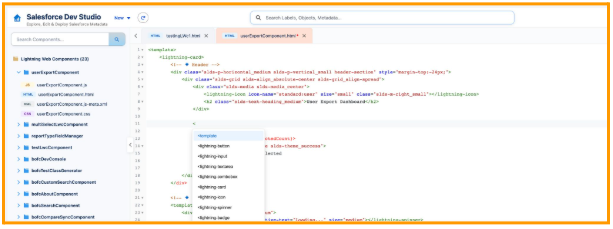
What changes with a native, in-org editor with DevStudio: authenticated by the existing Salesforce session, there's nothing to install locally and nothing to sync. Opening the DevStudio tool inside the org is the only one step process.
Challenge 2: LWC Bundles Are Easy to Lose Track Of
Once you're editing locally, it's easy to lose sight of exactly which files in a bundle changed — the JS is the obvious one, but the metadata XML or CSS can shift quietly alongside it, especially with more than one developer touching the same org.
What changes with in-org editing with BOFC DevStudio: changes save directly to the org in real time. What you see in the editor is always the live state of the component — not a local copy that may or may not match.
Challenge 3: The CLI Has a Real Learning Curve
CLI-based tooling is powerful but not approachable. An admin picking up light development work, or a developer new to Salesforce, often has to learn command-line authentication and deployment concepts before making a single edit to a component.
What changes with a visual, in-platform interface tool BOFC DevStudio: No CLI to learn first. You can open a LWC component and start editing.
What This Looks Like in Practice: Dev Studio
BOFC — already known in the Salesforce ecosystem for bulk metadata management — extends that same philosophy to code with Dev Studio, a fully native IDE that lives inside the Salesforce org itself. No VS Code installation, no CLI authentication, no local dependencies.
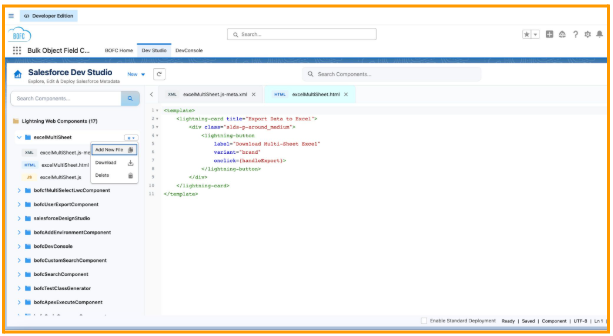
Inside Dev Studio, LWC bundles are fully editable in place — HTML, JavaScript, CSS, and metadata XML — alongside Aura Components, Apex Classes, Apex Triggers, Visualforce Pages and Components, and Static Resources, all from one interface.
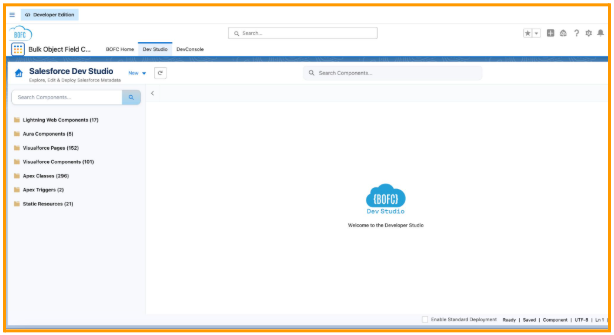
Because it runs on the existing Salesforce session, every change writes directly to the org — no separate sync step, and no code leaves the Salesforce security boundary.
How Dev Studio Differs from Other IDEs
1) Intelligent Auto-Complete — Context-Aware Across Every File Type
Dev Studio's auto-complete understands the context of what you are writing — not just the language.
In HTML — start typing a Lightning tag prefix and Dev Studio surfaces the full list of available Lightning Base Components. No tab-switching to look up component names.
In JS files — Dev Studio tracks every variable, property, and method declared in the current file and surfaces them as suggestions as you type.
In Apex Classes, Triggers, and backend code — this is where the integration with your live org becomes powerful. Type an object or Custom Label reference and Dev Studio pulls field names and label values directly from your org — not a static list, the actual live metadata.
2) Add Any File Type to an LWC or Aura Bundle
Standard Salesforce tooling enforces a fixed file structure for LWC and Aura components. Dev Studio removes that constraint. Add any file type to an existing bundle directly from the editor — and unlike other tools, Dev Studio supports multiple HTML files within a single LWC, enabling more sophisticated component architectures without workarounds.
3) Rename an LWC or Aura File or Bundle in One Action
In most tools, renaming a component means renaming the folder, renaming every file inside it, and updating all metadata references manually, one by one. Miss one and the component breaks.
In Dev Studio, rename a bundle and everything updates automatically — folder name, all component files, and all metadata references — in a single action.
4) Shift + M — Instant Metadata Access Without Leaving the Editor
One of the biggest productivity drains in Salesforce development is switching tabs mid-coding to check a field API name, a Custom Label value, or a Custom Metadata record.
Press Shift + M from anywhere in Dev Studio and a popup opens giving instant access to object fields, Custom Settings, Custom Metadata Types, and Custom Labels — every detail copyable directly into your code. No new tabs, no Setup navigation.
5) Quick Search Across All File Types
When an org has hundreds of components, dozens of classes, and multiple triggers, finding the right file is its own challenge. Dev Studio's quick search bar filters across all supported metadata types simultaneously — type any partial name and results appear in real time across every file type in one unified list.
6) Drag-and-Drop Tab Reordering
When multiple files are open — an LWC's HTML file, its JavaScript, an Apex Class it calls — Dev Studio lets you drag tabs into any order that matches how you think about the code. A small feature with a meaningful impact on daily focus and flow.
Who This Helps Most
- Solo developers and consultants managing multiple orgs who don't want to re-authenticate local tooling for every quick fix
- Admins who also write code, managing metadata and components from the same place
- Sandbox and UAT managers validating components quickly in non-production environments
- Developers newer to Salesforce, who benefit from a visual interface while still getting comfortable with CLI concepts
The Bigger Picture
VS Code and the Salesforce CLI aren't going anywhere — for large-scale development, version control, and CI/CD, they're still the right tool.
But for quick LWC edits, urgent fixes, and working across multiple orgs, a native, dependency-free option closes a real gap in how LWC development works today.
That's where Dev Studio comes in — BOFC's free answer to that gap and relief for every salesforce developer. No extra cost. Free-to-use.


Responses